From Classroom to Keepsake: How to Turn Your Students’ Photos into Adorable Christmas Cards
I had created digital cards for Mother’s Day and Father’s Day and they turned out to be huge hits with the parents, so I decided to go the same route for Christmas.
With technology making it so easy to take and use student photos for projects, I was looking for a unique and sentimental way to use them for our Christmas cards.
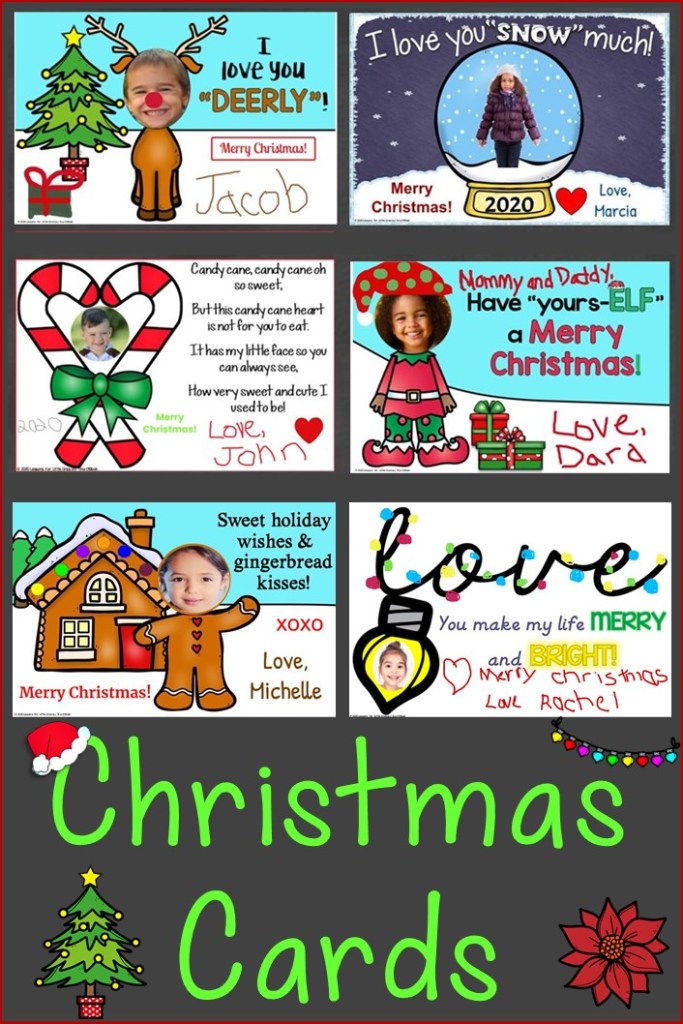
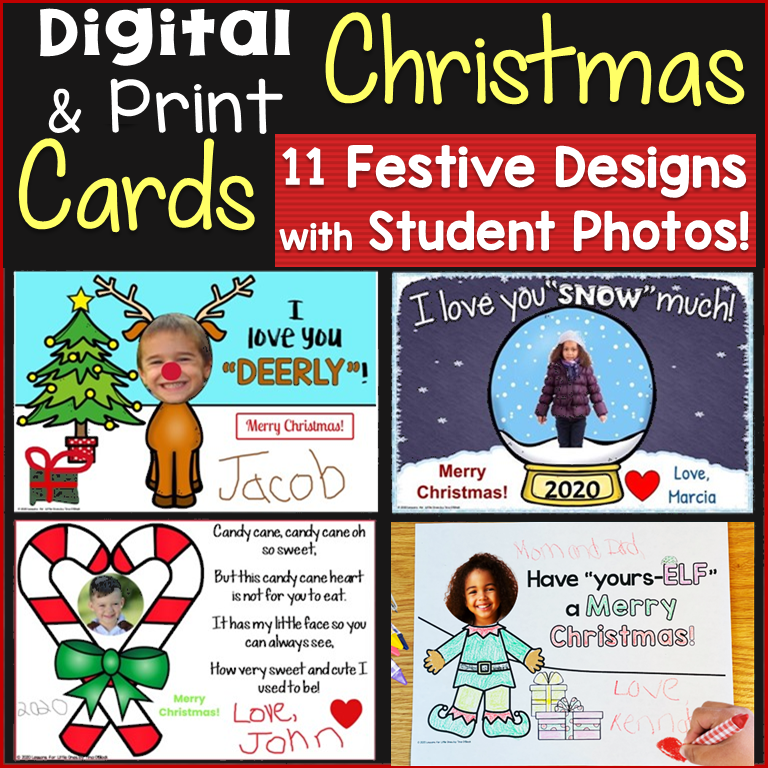
The ideas for the cards are from parent Christmas cards I have done in the past. Each student’s adorable photo is the centerpiece for the card, but when each student adds their own personalized touches, that is what really makes the card stand out. They are something parents and caregivers will cherish for years to come!
With having kinders that LOVE using technology and showing off their tech skills and pre-k students who are not quite as tech savvy, I wanted both digital cards that students could edit in Google Classroom or Seesaw and printable cards that students could color. Both can be downloaded or printed as keepsakes and personalized with student pictures – perfect!
As you may know, I am a huge fan of giving students choice, so I created 11 different designs from which they could choose. If you would like to use them with your students, they are available here.
Use PowerPoint to Insert Student Photos
One of the easiest platforms I have found for inserting student photos in a picture is PowerPoint because it has the crop to shape editing tool as well as the remove background tool. It makes it so easy to resize and shape the photo to the exact size and shape you need. You can use photos you have on file or students can send a recent photo via Google Classroom, Seesaw, or email. Students are pretty good at taking pictures and selfies nowadays LOL.


Once student photos were inserted in the cards, I saved the digital cards as JPEG picture files and sent them to the students to edit, and printed out the black & white cards to give to students in the classroom.
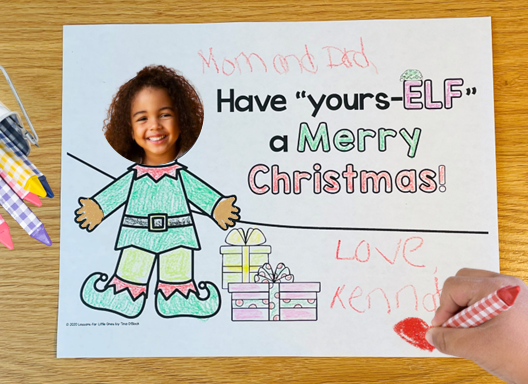
Students Can Color the Printable Black & White Cards
Students color and personalize the printable black & white cards.
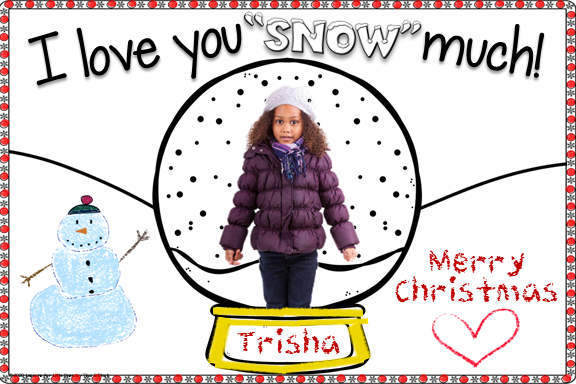
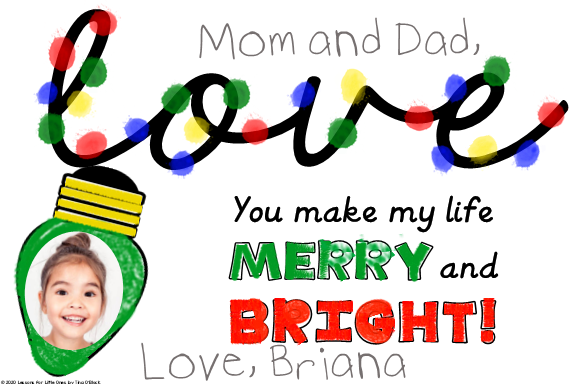
This one is especially cute because students can dip their fingers in paint and use their fingerprints as the Christmas lights!
Students Can Edit The Digital Cards in Google Slides
The cards can be edited by students in Google Slides via Google Classroom. Students can write holiday messages and “sign” their names. They can also insert shapes such as hearts, smiley faces, suns, stars, call outs, etc.



Students Can Personalize Their Christmas Cards in Seesaw
Personally, I love having young students use Seesaw to edit their cards because they can use the drawing tools to sign their names and draw pictures, use the text tool for messages, and my favorite part is they can use the record option to record a special holiday message that the card recipient can download and keep! How special!

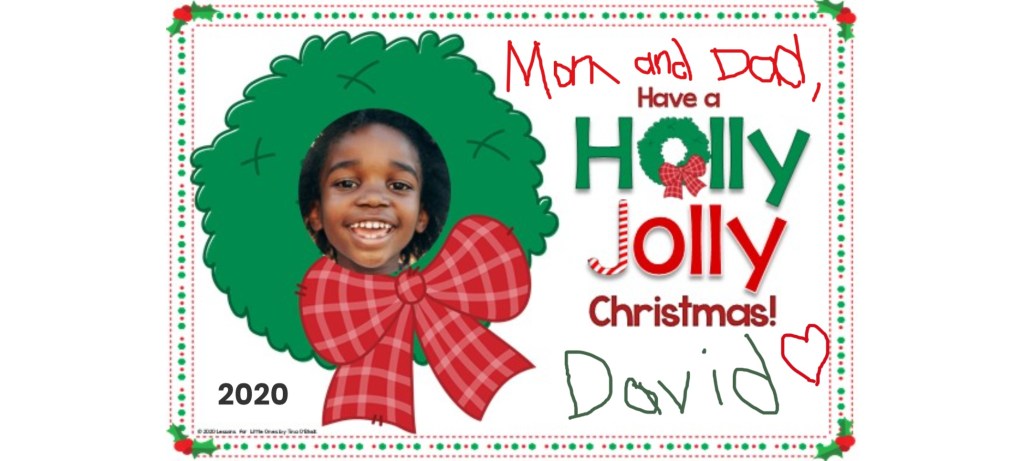





I also included a few that require students to fill in responses for writing practice and because they always turn out so adorable.


The Christmas cards can also be printed for students to sign and decorate if digital editing is not available or if you send students packets or printed materials.
If you would like to use these holiday Christmas cards with your students, click here to download them from my Teachers Pay Teachers store.
You may also like:
Pin it for later!