


So you purchased or found a great Google Slides resource but only want to assign a few of the slides to students. What do you do? The solution is actually quite simple and I wanted to share a quick tutorial with you to show you how to assign part of a Google Slides resource.
Open the file in Google Slides.
Click on the slides that you wish to assign in the thumbnail view on the left side. Use the Ctrl button to select multiple pages.
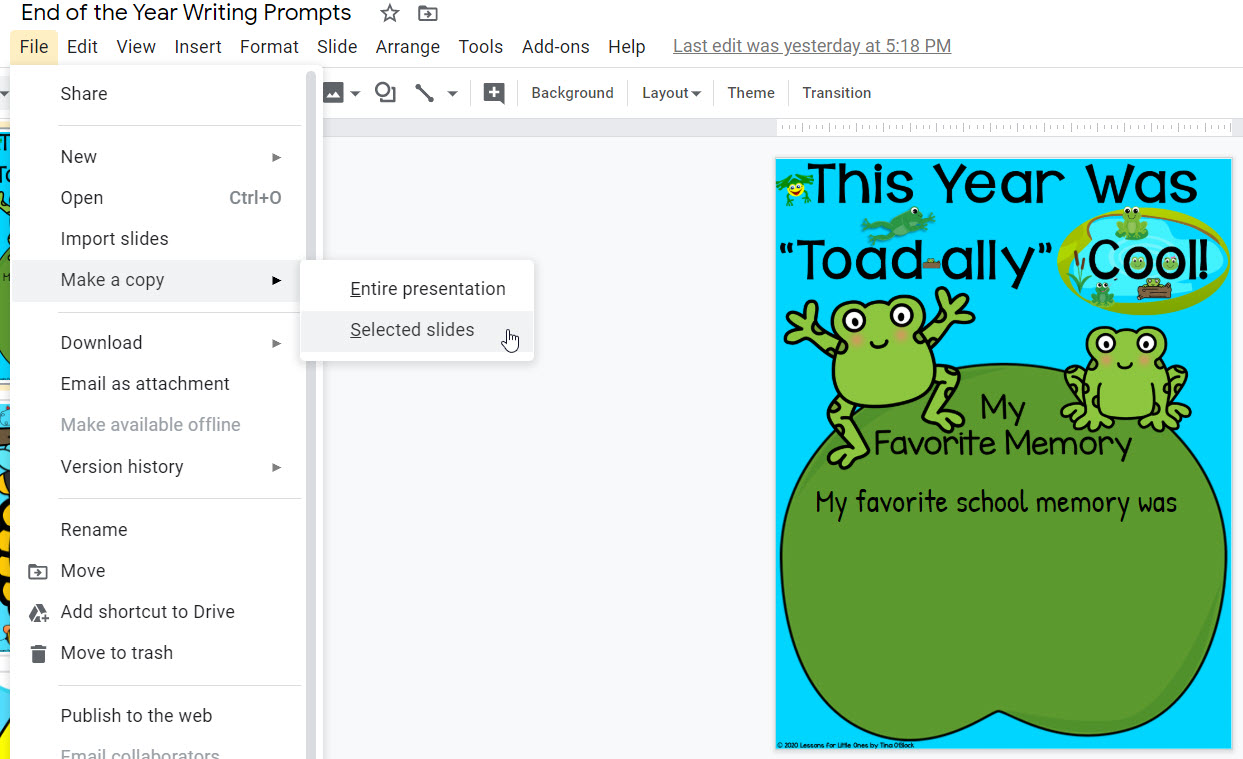
Click File – Make a copy – Selected slides

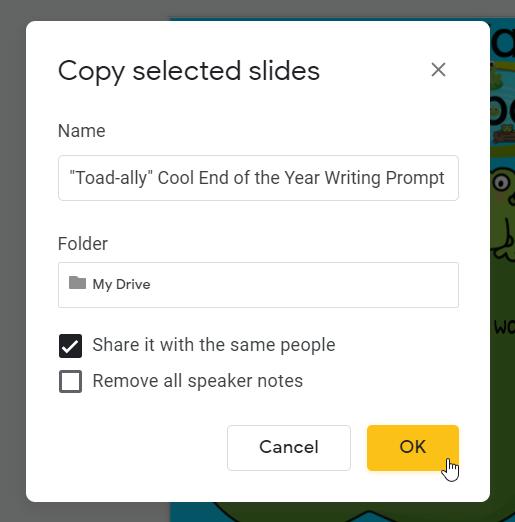
Name the file and be sure to check “Share it with the same people” to keep the same share permissions as the original file so you are able to share it with your students.
Click OK.

Google will make a copy and open the new file with only the selected slides. That’s it! You can now assign it in Google Classroom!
If you would like to see a video tutorial, click the video below.
